For security reasons, SSH connections are done exclusively using SSH public key authentication or SSH certificate authentication.
SSH Public key authentication
The motivation to use public key security is to achieve better security than simple passwords could provide. Public key authentication provides a cryptographic strength that even extremely long passwords cannot provide.
Your private key will be stored on your computer, and this key will be protected by your password. But this one will never leave your computer. Instead, when establishing communication with the gateway, the private key will be used to authenticate yourself. The gateway will use your public part of the key to verify your authentication.
In order to setup a secure connection with a public key, you will need to:
Generate a private/public key pair
Linux
You can generate a new key pair using ssh-keygen
Windows
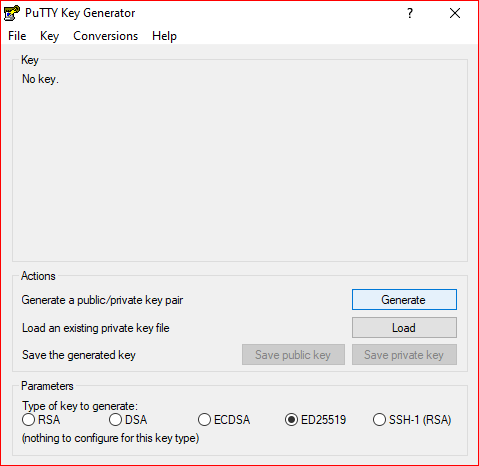
You can generate a new key pair using putty generator
Using Putty Generator
Launch Putty Generator, and select you key type. Then click on "Generate"
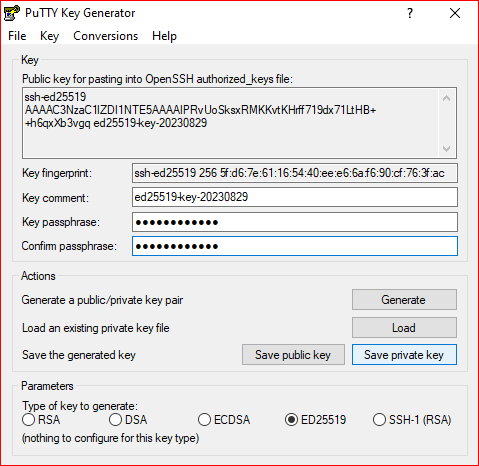
Protect your key by a passphrase, then click on "Save private key" to save your key on your disk.
Deposit your public key via the WebUI
The associated ssh key will permanently have access to this gateway. For security reasons, you need to study carefully the lifetime of this public key. As a preferred alternative, you might consider using SSH certificate authenticate instead.
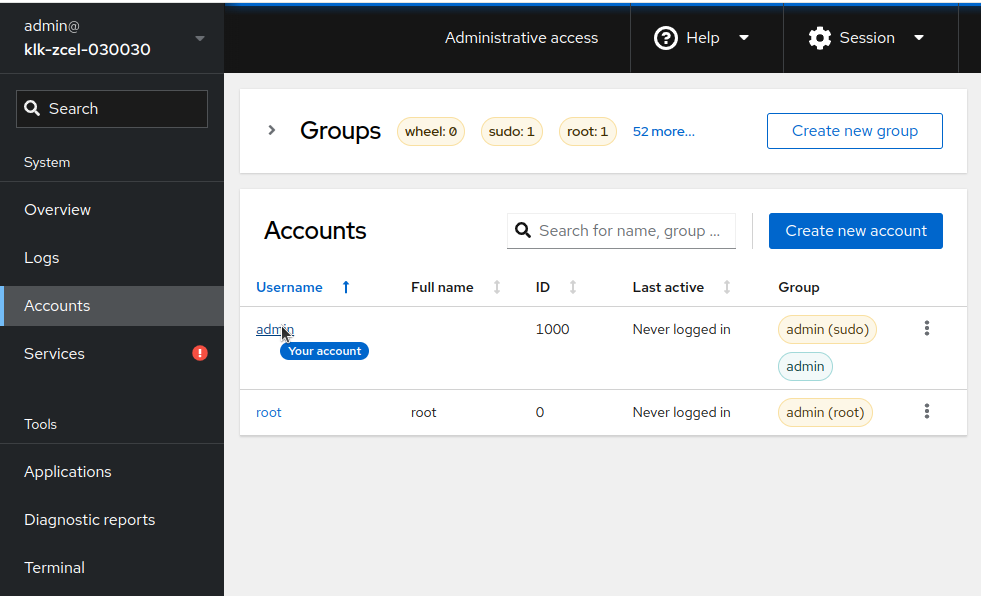
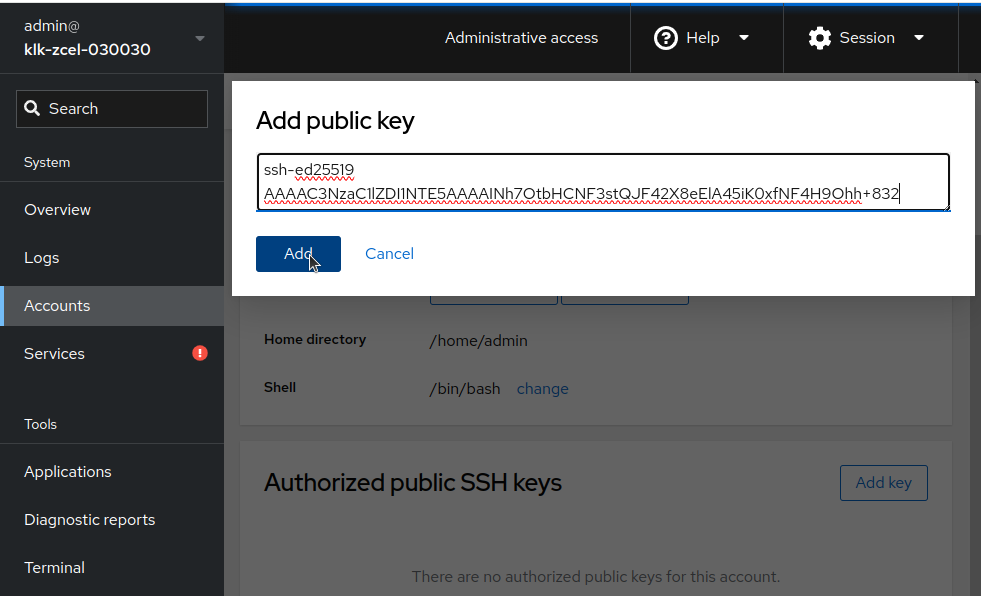
Using the Accounts tab
Using the Accounts tab
Select the appropriate user that you want to use
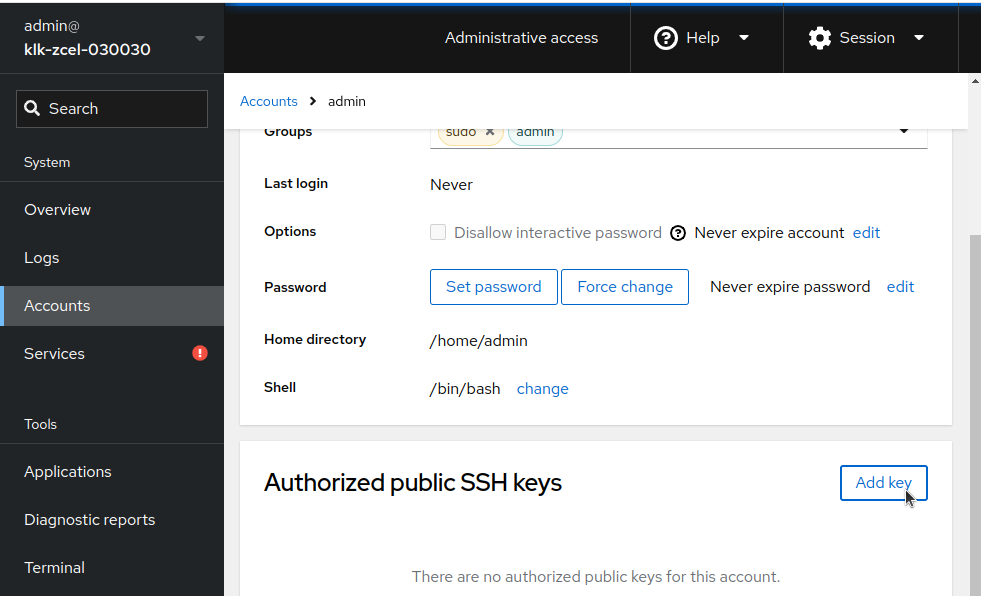
Under "Authorized public SSH keys", click on "Add key"
Then paste your key in the new dialog
Using Web Terminal
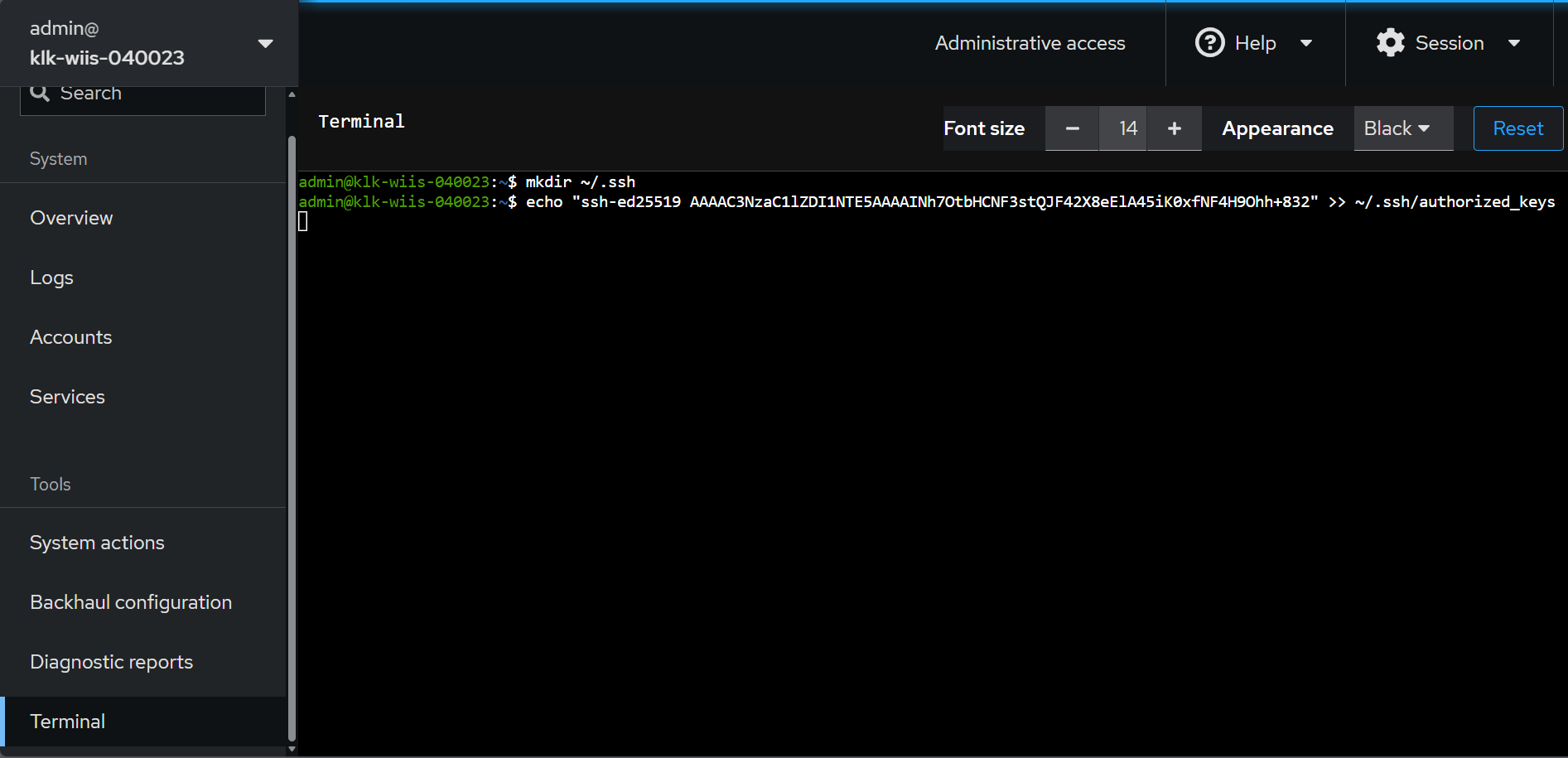
Use this key pair to authenticate
You can now use your key to connect using SSH
Linux
You can directly use ssh to connect. ssh-agent will prompt for your passphrase.
Windows
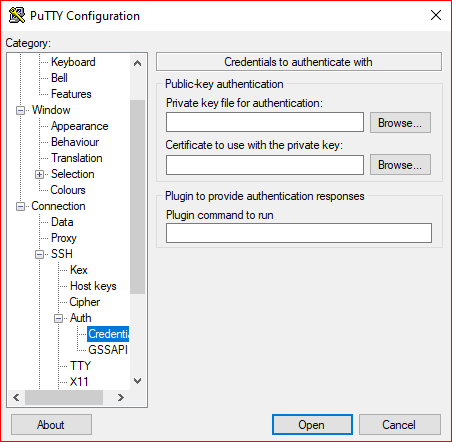
Go to Putty configuration> Connection > SSH > Auth > Credentials
And browse for your private key
SSH certificate authentication
Certificate authentication aims at suppressing the public key deployment complexity, reducing the problem of identification, and allowing to create specific access right for each certificate delivered.
The main idea is to create a private/public key pair, deploy the public part, and use this key to sign all the other public keys you want to allow to connect to your gateway. By doing this, you do not have to send anymore public keys to your gateways.
In order to use certificate authentication, you will need to:
- Generate a private/public key pair (will be referred as Certification Authority (CA) key)
- Send the public Certification Authority key to the gateways, and store it inside
/etc/ssh/trusted_user_ca_keys.d/<my_trusted_ca_key.pub>
And then, for each user that will need to connect to the gateways:
- Generate a user private/public key pair
- Sign the user public key using the Certification Authority key
- Use the generated certificate to connect to the gateway
A step-by-step instruction is available here.
For more information, please read ssh-keygen certificate documentation
Automate the deployment of public keys on a batch of gateways
To automate the deployment of your public keys, Kerlink offers several options:
-
ZTP (Zero-Touch Provisioning) More details about ZTP here.
-
Kerlink prestaging
-
Wanesy Management Cockpit (Subject to a service contract)
Feel free to contact Kerlink for more details.
Password-based authentication
This feature is disabled by default in sshd configuration. We recommend to exclusively use keys or certificates to connect to our gateways in SSH.